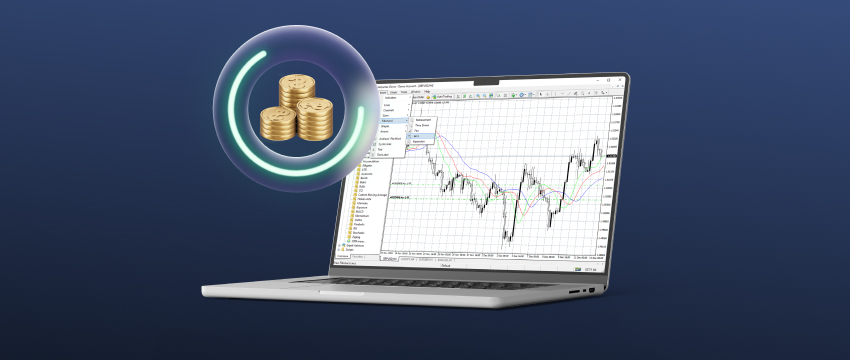
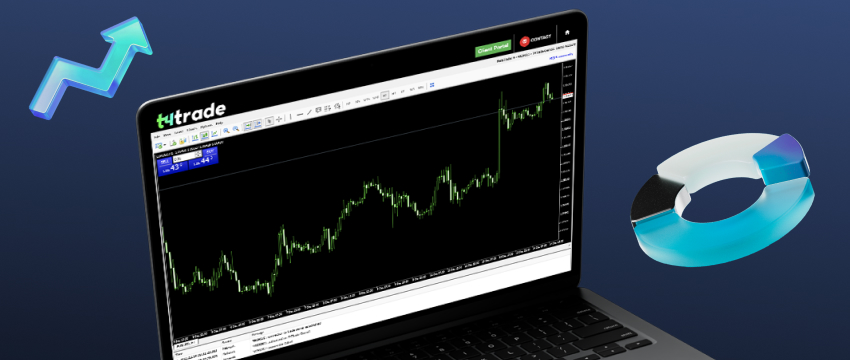
One of the primary advantages of MetaTrader 4 is that it’s an easy platform to learn. However, MT4 charting made simple still isn’t a simple task for someone who may just be entering the trading world, or someone who isn’t that tech-savvy.
All of the features you see on your screen may be overwhelming, and that sense of cognitive overload causes many to freeze up. It makes the learning process much more difficult than it needs to be, and in some cases, turns people away from trading altogether. The solution, luckily, is simple. Just take it bit by bit.
You don’t need to master MT4 within a day or even a week. All you need to do is learn one element after the other until the entire platform no longer looks so daunting. And what better place to start than charting?
What is a Chart?
Few traders go a day without looking at a chart. Charts show price movement over time, an integral piece of trading information. MT4 charting made simple starts with understanding the two most common types used in MetaTrader 4: line and candlestick charts.
Gráficos de linhas are the ones most commonly depicted in media. They show a single line that connects the various price points an asset has reached over time.
To get into a bit more detail, they connect the closing prices. For instance, if each data point shows prices for one hour, the data point from 8 AM to 9 AM will show where the price was at 9 AM sharp.
Line charts are great if you want a quick and clean overview, and often used by long-term oriented traders who want to eliminate noise.
Gráficos de velas are more detailed, but also somewhat harder to read. They consist of three parts: the body, or the thicker part in the middle, and two wicks, also called shadows, sticking out of the top and bottom.
The colour of the body shows you the direction of the price movement, green for up and red for down. The top and bottom of the body are the opening and closing prices. If the body moves up, the bottom is the opening and the top is the closing, and vice versa.
The wicks show the highest and lowest prices. If a wick is missing, that means it matches the opening or closing price. Although less common in movies and TV, candlesticks are actually more commonly used in trading.
They give a detailed overview at a glance, and are especially useful for traders looking for minute movements in the short term.

Opening and managing MT4 charts
With that crash course on charts out of the way, let’s get to today’s topic. You can’t look at a chart if you can’t open it, right? MT4 charting made simple begins with knowing how to open a chart correctly.
Luckily, this step is pretty simple. All it takes is three steps.
- Locate the asset you want to open a chart in the market watch window (top left of your screen by default)
- Right-click the asset
- Press Chart Window
And there’s your chart! It’s likely a candlestick chart, so if you want to make things a bit less overwhelming, you can change it to a line chart.
Click your chart window, then navigate to the top bar on your screen, the toolbar. There are numerous options here, but the button you are searching for looks like a line chart. Simply click it, and your chart type will change. When you want to switch back, the button for candlestick charts is right next to it.
This is part of keeping MT4 charting made simple, especially when managing multiple views. You can drag, resize, and close bars in their respective windows. MetaTrader 4 also allows for multiple charts to be open if you want to track more than one instrument.
Chart navigation in MT4 made simple
Next, let’s look at how you can navigate your charts to get more accurate price information. This is another step in keeping MT4 charting made simple, especially when analysing price movement.
Let’s start with the basics: zooming in and out. To zoom in, you have three options: press the magnifying glass with the + sign in the toolbar at the top, press the + button on your keyboard, or hold the Ctrl button and scroll up on your mouse. To zoom out, press the magnifying glass with the – sign, press the – bar on your keyboard, or hold the Ctrl button and scroll down. This lets your chart encompass more or less data depending on the period you are looking at.
If you want to look at data that isn’t current, you can also do that. Simply click your chart and drag right to move backwards and left to move forwards.
But maybe you try looking at past data, but your chart just keeps jumping forward periodically. It’s likely that you have Auto-Scroll on. Auto-Scroll is a feature that makes your chart jump to a new candle whenever it appears.
It’s a great tool if you’re tracking the current price, but makes it nearly impossible to look at past data without your chart jumping on its own.
Luckily, turning it on and off is simple. Just click the button in the toolbar that looks like a chart with a play symbol on it (green arrowhead pointing right). If the button is highlighted, it’s on, and if not, it’s off.
Understanding MT4 chart timeframes
You can now open charts, choose the type you prefer, and move around. That’s a great start! But let’s go further and teach you how to control the data you’re looking at. MT4 charting made simple also means understanding how timeframes work.
Timeframes dictate how long each data point in your chart is. A one-minute timeframe shows data for one minute. So, for instance, each candlestick would represent one minute of price data. It’s a pretty intuitive system.
You may think that the smartest move is to always use the shortest timeframe, since that will give you the most detailed information.
However, traders looking at the long term will actually use longer timeframes as part of MT4 charting made simple, cutting out the noise that temporary periods of heightened activity create, which is irrelevant to their plan.
Now, there isn’t a “Timeframes” button on MT4, which may confuse some. But click your chart and look at the toolbar again, and you’ll see M1, M5, M15, etc. These are the timeframes.
In MetaTrader 4, there are 9 timeframes in total:
- M1, M5, M15, M30 (1, 5, 15, 30 minutes)
- H1, H4 (1, 4 hours)
- D1 (1 day)
- W1 (1 week)
- MN (1 month)
Picking the right timeframe for your situation is a crucial skill for traders to learn, and lets you get the right information at the right time.

Using indicators on MT4 charts
Finally, let’s go over adding indicators to your chart. Indicators analyse price data and add visual cues to help you better understand market trends.
Now, if you’re just learning about charting, using indicators properly may be above your pay grade for now. However, adding them is simple, and learning to do so now may save you some hassle later on.
To add an indicator, go to the Navigator menu below Market Watch. It’s in the middle-left of your screen. There, you’ll see Indicators written out next to a + and a small icon. Click the + to open your menu of available indicators.
Since we’re just learning how to open an indicator and not how to use it, don’t fuss over which one to add. Simply select one and click and drag it over to your chart. Once you let go, the chart will have some additional visual objects.
You’ve Taken the First Big Step
There you have it! If you’ve gone through this guide, you’ve mastered the basics of charting. A lot of work is still ahead of you, but MetaTrader 4 may feel just a bit less foreign now.
Keep going, take one step at a time, and MT4 charting made simple will become second nature before you realise it.
DISCLAIMER: This information is not considered as investment advice or an investment recommendation, but is instead a marketing communication